class tracking in qbo
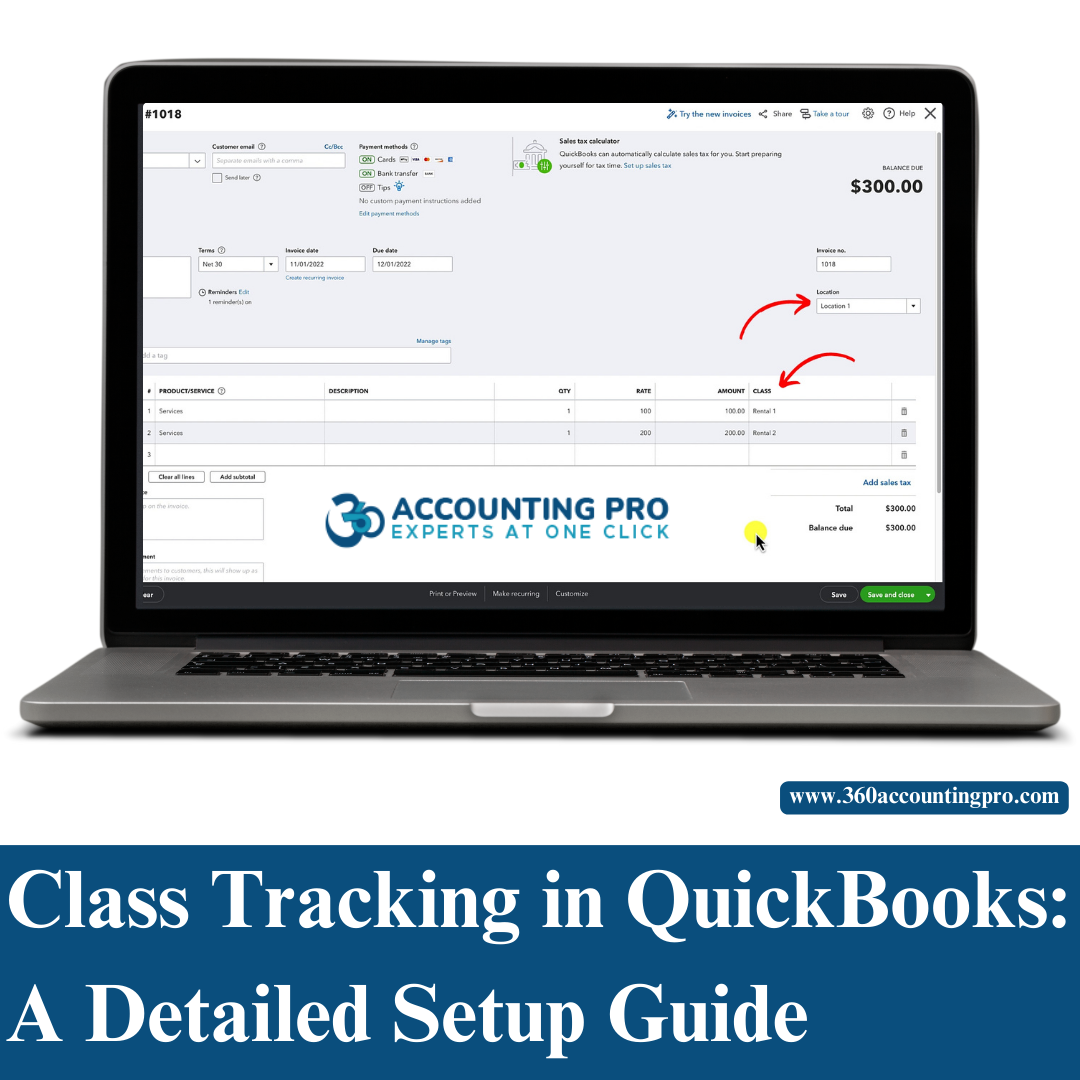
Class Tracking in QuickBooks: A Detailed Setup Guide
12-11-24
What is Class in QuickBooks?
A class in QuickBooks is a powerful categorization tool that helps businesses track income, expenses, and profitability by specific segments, such as departments, locations, product lines, or projects. By assigning classes to transactions, users can generate detailed financial reports that offer deeper insights into their business performance. This feature is especially useful for companies managing multiple revenue streams or cost centers, allowing them to track financial data more accurately.
What is Class Tracking in QuickBooks Online?
Class tracking in QuickBooks Online allows businesses to categorize transactions into different segments, providing better financial visibility. This feature is available in QuickBooks Online Plus and QuickBooks Advanced and enables users to analyze profitability based on departments, locations, projects, or any other custom category.
Whether you're using QuickBooks Online, QuickBooks Payroll, or QuickBooks Enterprise, class tracking enhances financial reporting and streamlines budgeting and expense management.
Benefits of Class Tracking in QuickBooks
- Better Financial Insights – Track income and expenses by class for better budgeting.
- Improved Decision-Making – Generate class reports in QuickBooks Online to analyze the performance of each business segment.
- Enhanced Cost Management – Monitor costs across departments, locations, or projects and optimize expenses.
- Streamlined Tax Preparation – Assigning classes helps categorize deductible expenses accurately.
How to Set Up Class Tracking in QuickBooks Online
Setting up class tracking in QuickBooks Online is straightforward. Follow these steps to enable and use it effectively:
Step 1: Enable Class Tracking in QuickBooks Online
To turn on class tracking:
- Go to Settings > Account and Settings.
- Select the Advanced tab.
- Under Categories, turn on Track Classes.
- Click Save and Done.
Step 2: Create Classes in QuickBooks Online
- Navigate to Settings > Lists > All Lists.
- Click on Classes, then select New.
- Enter the class name (e.g., “Sales,” “Marketing,” “Operations”).
- Click Save.
Step 3: Assign Classes to Transactions
- When recording income, expenses, or invoices, select the appropriate class from the dropdown menu.
- For QuickBooks Online Payroll users, assign classes to track labor costs.
Running Class Reports in QuickBooks
To analyze financial performance by class:
- Go to the Reports tab.
- Search for "Profit and Loss by Class".
- Select the appropriate date range and click Run Report.
Class reports in QuickBooks Online provide a detailed breakdown of revenue and expenses, helping businesses make data-driven decisions.
Challenges in Class Tracking and How to Overcome Them
While class tracking in QuickBooks Online is highly effective, businesses often face common challenges, including:
Misclassification of Transactions – Assigning incorrect classes can lead to inaccurate reports.
Forgetting to Assign Classes – QuickBooks allows users to set a reminder to always assign a class.
Complex Class Structures – Using too many classes may complicate financial reporting. A well-structured class tracking system ensures clarity and accuracy.
How 360 Accounting Pro Inc. Can Help
At 360 Accounting Pro Inc., we provide expert support in setting up and optimizing class tracking in QuickBooks Online. Our services include:
1. Class Tracking Setup and Customization
We help businesses customize class structures based on industry-specific needs.
2. Training and Support
Our experts guide businesses on how to run class reports in QuickBooks and ensure accurate data entry.
3. Troubleshooting and Error Resolution
If you encounter class tracking issues in QuickBooks Enterprise or QuickBooks Online, our specialists provide quick solutions.
4. Advanced Financial Reporting
We create customized reports for businesses that need in-depth financial analysis and decision-making support.
Why Choose 360 Accounting Pro Inc.?
QuickBooks Experts – Certified QuickBooks ProAdvisors with years of experience.
Customized Solutions – We tailor class tracking setups for businesses of all sizes.
Ongoing Support – From QuickBooks Online class tracking setup to financial reporting, we provide continuous assistance.
Conclusion
Class tracking in QuickBooks Online is a powerful feature that helps businesses organize transactions, monitor financial performance, and make informed decisions. Whether you are a small business owner or managing a large enterprise, properly setting up class tracking can significantly improve financial management and reporting.
At 360 Accounting Pro Inc., we provide expert guidance in setting up class tracking in QuickBooks Online, QuickBooks Payroll, and QuickBooks Enterprise. Let us help you optimize your financial processes and gain valuable business insights.
Contact us today to get started with class tracking in QuickBooks Online and take control of your business finances!
Tags : #QuickBooks, #ClassTracking, #QuickBooksOnline, #FinancialManagement, #QuickBooksReports, #QuickBooksTips, #BusinessAccounting, #ProfitabilityTracking, #QuickBooksEnterprise, #AccountingSoftware, #BusinessFinancials, #QuickBooksSupport, #ExpenseTracking


Comments
Post a Comment